

It’s one of the most-searched questions students ask about online testing, usually typed into a phone under the desk in a tone of quiet panic: can edulastic see if you switch tabs? (Edulastic is the former name of Pear Assessment, and the question follows the platform.) The honest answer is more specific — and more limited — than either the rumors or the fears suggest. The test environment does notice when you leave it. It does not watch what you do while you’re gone, it does not record your screen, and it cannot read your other tabs. What actually happens is a fullscreen alert system: leave the test view for more than a few seconds and your teacher gets notified that you exited — a “student left the test” flag, not a surveillance feed.
This guide explains exactly what is monitored, what triggers the alerts students talk about, and what stays private — for students who want the truth, and for teachers who’d rather explain the system clearly than have it explained by rumor.
What the test actually monitors
Strip away the mythology and the monitoring is modest and specific. While a test is running, the test player can detect focus: whether the test is the active, visible thing on your screen. When focus is lost — you switch tabs, switch apps, minimize the window, or the test’s fullscreen mode is exited — the system can register an exit event and, past a brief threshold (commonly a few seconds, around five), alert the teacher that the student left the test environment. The teacher sees that an exit happened, typically with its timing in the live monitoring view. The teacher does not see where you went.
That’s the whole mechanism. It’s closer to a classroom door alarm than to a camera: it announces that someone left the room; it says nothing about where they went, what they looked at, or what they did while out. Understanding that distinction resolves most of the anxiety and most of the misinformation in both directions — no, you’re not being recorded; and also no, you can’t quietly slip away unnoticed.

can edulastic notify your teacher when you exit a tab
Yes — that’s precisely what the alert does. When the test detects that you’ve left the test view beyond the brief grace threshold, the teacher’s monitoring view is notified that you exited. Teachers running a live session can see these events as they happen, and the exit can remain visible in the session record afterward. The notification is about the event, not the contents of your detour.
There’s an important nuance students miss: brief, accidental exits — a notification popup stealing focus, a fat-fingered swipe — can also register. Teachers know this, which is why a single exit event is information, not a verdict. A pattern of repeated exits, especially ones that line up suspiciously with the hardest questions, is what draws real scrutiny. Context is how teachers read these alerts, and students who return instantly from an accidental exit have little to worry about.
can teachers see when you leave a testing tab on edulastic
Teachers can see that you left and when — the exit events appear in their live view of the class session, attached to your name, as they occur. What they can’t see is anything beyond the fact and timing of the exit. They don’t get a screenshot of your destination, a list of your tabs, or a recording. After the test, the same holds: the record shows exit events, not a movie of your screen.
This is a good moment to note what the monitoring is for. It exists so a teacher supervising thirty students gets a tap on the shoulder when someone wanders — the digital equivalent of noticing a student has left their seat. It’s a supervision aid for a teacher who is still, ultimately, the supervisor. It is not an automated cheating verdict, and responsible teachers treat an alert as a reason to walk over and look, not as proof of anything.
can edulastic see my desktop or my second monitor
No. The test runs inside a browser or app window, and its awareness ends at that window’s borders. It cannot see your desktop, your files, your messages, or what’s open in other applications. A second monitor doesn’t extend its vision either: the test knows its own focus state — whether it’s the thing you’re looking at — not what’s displayed on your other screen.
The honest boundary: the platform knows when it’s not being looked at. It does not know what is being looked at instead. Anything you’ve heard claiming the test photographs you, reads your clipboard, or inventories your tabs belongs to the same rumor family as “the teacher can see through your webcam” — lockdown environments at some schools layer additional tools (managed devices, separate monitoring software installed by the school), but those are the school’s systems, not something the assessment itself does. If your school uses a locked-down testing mode such as a kiosk setup, that’s a separate, stricter environment, covered in our guide to Pear Assessment kiosk mode.
a student got a fullscreen alert during the test what triggered it
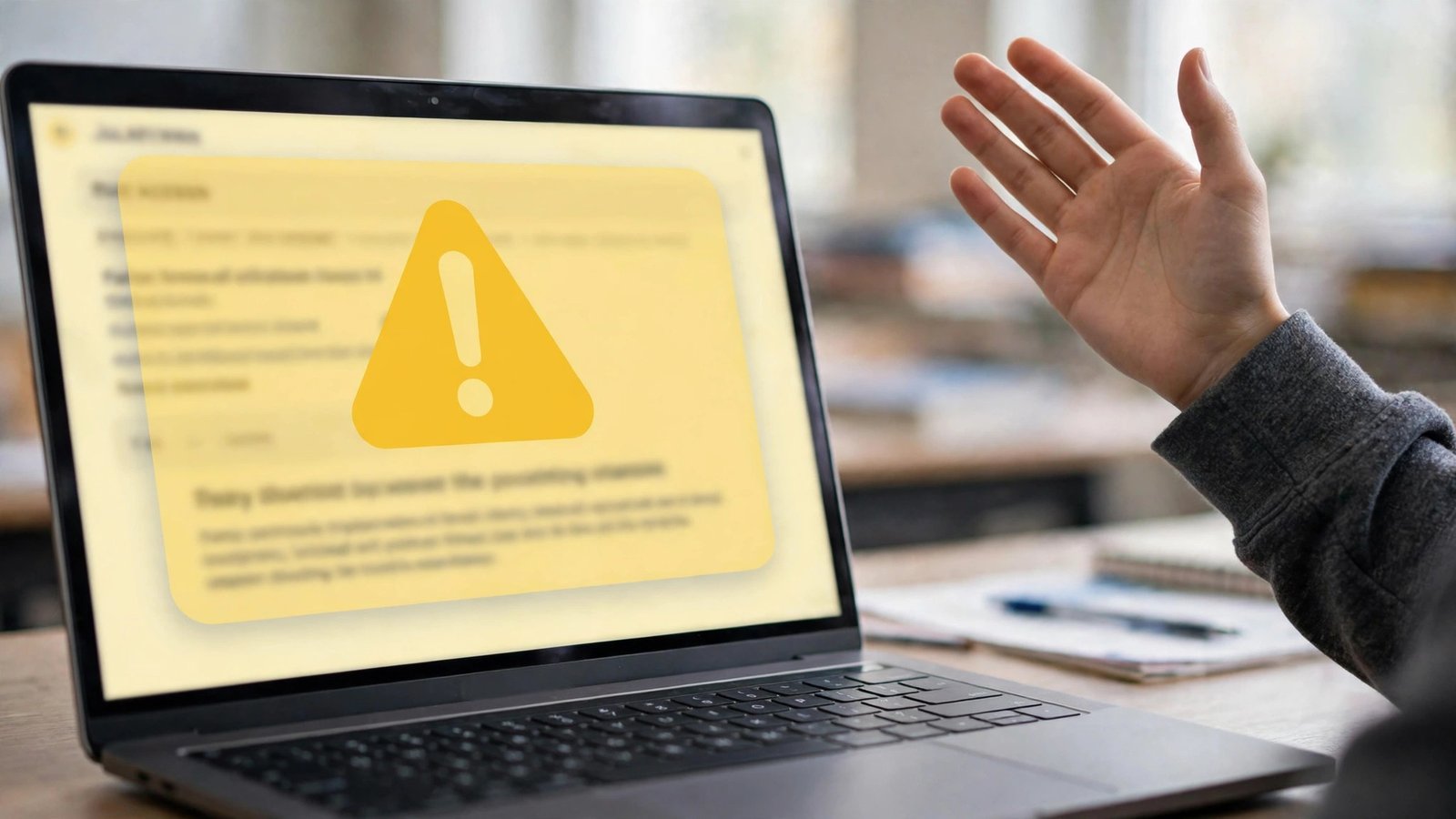
If you (or your student) saw a fullscreen warning mid-test, something took the test out of fullscreen or stole its focus. The common triggers, roughly in order of how often they actually happen:
- Switching tabs or windows — the classic, deliberate or absent-minded.
- Exiting fullscreen accidentally — pressing Esc, or the browser’s fullscreen shortcut, while stretching or reaching for another key.
- System pop-ups — a notification, an update prompt, a calendar reminder, another app demanding attention and pulling focus with it.
- Switching apps — checking a message, a calculator app, anything outside the test window.
- Multiple monitors and clicks — clicking into something on a second screen moves focus away from the test.
Stay out of the test view for more than the brief threshold — about five seconds in the commonly reported behavior — and the incident graduates from a warning on your screen to a notification on your teacher’s. A one-second accidental flicker is the system clearing its throat; a sustained absence is the alarm. Students: if a genuine accident happens — an update popup mugging your screen — return immediately and, if your teacher asks, say exactly that. It’s a common, believable event, because teachers see it on the monitoring view for what it is: a brief blip, not a field trip.
Teachers wanting the broader picture of how session monitoring fits the platform’s behavior can cross-check our Pear Assessment troubleshooting notes and the general explainer of what Pear Assessment is.
Why the rumors get it wrong in both directions
Student folklore about test monitoring splits into two opposite errors, and both cause real harm. The first error is overestimation: the belief that the test is total surveillance — recording screens, reading tabs, watching through webcams. Students who believe this take tests in a state of low-grade dread, and dread is a performance tax that has nothing to do with what they know. It also produces a strange fatalism: if the system “sees everything anyway,” some students stop distinguishing between the small honest act (closing a notification) and the big dishonest one. Precision matters because an accurate mental model is what makes honest behavior feel possible and worthwhile.
The second error is underestimation: the belief that because the test can’t see other tabs, leaving is consequence-free. This one collapses on contact with the actual mechanism — the exit event is logged and the teacher is notified, which is the only fact a would-be wanderer needs. The student who alt-tabs to a chat window full of classmates has gained nothing except a timestamped exit that correlates beautifully with the questions they then answer correctly. Teachers don’t need to see the destination when the pattern — leave, return, suddenly ace the hard items — tells its own story to any reasonable reader.
Schools sit on a spectrum here. A standard Pear Assessment session runs the focus monitoring described in this article. A school-managed testing environment may add device-level controls — locked browsers, kiosk mode, managed Chromebooks — that genuinely restrict what a device can do during the test. Those are separate systems with their own (usually well-signposted) rules, and conflating them with the assessment itself is how the rumors get their energy: one true fact about one strict environment gets retold as a fact about every test everywhere. When in doubt, ask your teacher which environment you’re actually in. It’s a legitimate question with a factual answer, and teachers would rather answer it in advance than adjudicate it afterward.
What this means, practically
For students: take tests in the test. The system will notice departures, your teacher will see that you left, and the explanation “I was just checking something innocent” spends credibility you may need for a genuine accident later. If you need help mid-test, the channel is your teacher, not another tab.
For teachers: explain the mechanism before the first test, in exactly these terms — what’s noticed, what isn’t. Classes told plainly “the test tells me when you leave it; it doesn’t show me where you went” behave better than classes menaced with exaggerated surveillance claims, partly because honesty is credible and partly because students stop testing the boundaries of a system they actually understand. For the official description of assessment security features, the official Pear Assessment documentation remains the authority.

Frequently asked questions
Does Edulastic/Pear Assessment record my screen during a test?
No. The assessment doesn’t record or screenshot your screen. It detects whether the test window has focus and reports exit events to the teacher.
Can my teacher see my other tabs or browsing history?
No. The test knows its own focus state only. It cannot list, read, or report your other tabs or your history.
Will one quick accidental tab switch get me in trouble?
A brief accidental exit usually registers as just that — brief. Teachers see duration and pattern; a momentary blip followed by a return reads very differently from repeated long absences.
Does the fullscreen alert mean I failed or my test is void?
No. The alert is a notification mechanism, not an automatic penalty. What happens next is your teacher’s decision, based on the circumstances.
The bottom line
Can Edulastic see if you switch tabs? It can see that you left the test — and it will tell your teacher, with a fullscreen alert, if you’re gone for more than a few seconds. It cannot see where you went, what you opened, your desktop, or your other monitor. A door alarm, not a camera: that’s the accurate picture, for students planning their behavior and teachers explaining the rules alike.