
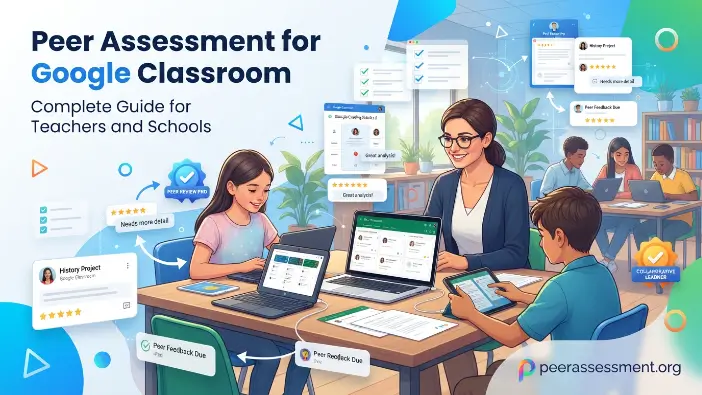
Welcome to Pear Assessment. Digital learning has changed the way teachers check students’ understanding. In the past, teachers mostly depended on paper-based tests to evaluate learning, but now they use online assessment tools to make learning more interactive and effective. These digital platforms allow teachers to create quizzes, activities, and assessments, collect feedback quickly, and track how well students are performing. Pear Assessment for Google Classroom helps teachers combine these modern assessment methods with the familiar Google Classroom environment, making the learning and evaluation process easier.
For schools that already use Google Classroom, Pear Assessment can make classroom management more organized and efficient. It allows teachers to create engaging assessments, share them with students, check their performance, and analyze results to understand their learning needs. Instead of spending extra time managing paper tests and manual grading, teachers can use digital assessment features to save time and focus more on improving student learning. In this guide, you will learn what Pear Assessment is, how it works with Google Classroom, how to set it up, its key benefits, best practices, common problems, and whether it is the right assessment solution for your classroom.
What Is Pear Assessment?
Pear Assessment is a digital assessment platform that helps teachers create, share, and evaluate online assessments easily. It improves traditional testing by allowing educators to create digital quizzes, activities, and learning tasks that students can complete online. The platform helps teachers understand student performance, provide feedback, and improve the learning process. It is widely used by teachers and schools, especially those using Google Classroom or other digital learning platforms. Pear Assessment makes learning more flexible and interactive by helping educators track progress, identify learning gaps, and create a better assessment experience for students.
Key Features of Pear Assessment
Pear Assessment offers several useful features that help teachers create effective digital assessments and improve the learning experience for students. These features allow educators to design interactive activities, provide quick feedback, track student progress, and use data to make better teaching decisions. By using these tools, teachers can make assessments more organized, engaging, and connected with modern digital learning methods.
The key features of Pear Assessment include interactive assessments, real-time feedback, student progress tracking, digital content creation, and assessment analytics. These features help teachers move beyond traditional testing methods and create a smarter assessment process where technology supports both teaching and student success.
Interactive Assessments
One of the most important features of Pear Assessment is interactive assessments. Traditional tests usually involve students answering questions on paper, but interactive assessments allow students to engage with digital activities more interestingly.
Teachers can create different types of activities that encourage students to think, analyze, and apply their knowledge instead of only memorizing information.
For example, a teacher can create:
- Online quizzes
- Question-and-answer activities
- Learning exercises
- Problem-solving tasks
- Digital classroom activities
Interactive assessments help make lessons more enjoyable and encourage students to participate actively. When students are more involved, teachers can get a clearer picture of their actual understanding.
Real-Time Feedback
Feedback is an important part of the learning process because it helps students understand their strengths and improve their mistakes. Pear Assessment allows teachers to provide feedback faster compared to traditional assessments, where checking papers and sharing results can take several days. With digital assessments, students can quickly review their performance and identify areas where they need improvement.
Real-time feedback also helps teachers understand overall classroom performance. If many students face difficulty with the same question or topic, teachers can identify the problem and provide additional explanation or support. This allows educators to improve their teaching methods and help students achieve better learning outcomes.
Student Progress Tracking
Pear Assessment helps teachers track student progress over time. Instead of looking only at final grades, teachers can analyze how students are improving throughout the learning process.
Student progress tracking helps educators understand:
- Which students are performing well
- Which students need additional help
- Which topics are difficult for learners
- How teaching methods are affecting results
This information allows teachers to provide better support and create learning plans according to individual student needs.
For example, if a student consistently struggles with mathematics assessments, the teacher can identify the problem early and provide extra practice or guidance.
Digital Content Creation
Pear Assessment allows teachers to create digital learning materials based on their teaching requirements. Educators are not limited to traditional worksheets and can design assessments that match their lessons and learning objectives.
Teachers can create content that includes:
- Lesson-based quizzes
- Practice activities
- Review exercises
- Knowledge checks
- Interactive learning tasks
Digital content creation saves time because teachers can organize and reuse assessment materials for different classes or future lessons.
It also allows educators to create more creative learning experiences that match different student learning styles.
Assessment Analytics
Assessment analytics is another valuable feature of Pear Assessment. It helps teachers understand student performance by analyzing assessment data.
Instead of only seeing a score, teachers can view deeper information about learning progress. Analytics can show patterns such as common mistakes, improvement areas, and overall class performance.
These insights help teachers:
- Improve lesson planning
- Identify learning problems
- Adjust teaching strategies
- Support students more effectively
For example, if assessment data shows that many students are struggling with a specific topic, the teacher can spend more time explaining that area before moving forward.
Read Also: Pear Assessment Login Not Working
How Pear Assessment Supports Modern Classrooms

Modern classrooms rely more on technology, and teachers need digital tools to make learning easier and more engaging. Pear Assessment helps educators create digital assessments, track student performance, and improve the learning process by replacing traditional testing methods with smarter assessment solutions.It also helps teachers save time, provide faster feedback, and make better teaching decisions using student data. With Pear Assessment, educators can create a more organized, interactive, and student-focused classroom environment.
Student Engagement
Student engagement means how actively and positively students participate in the learning process. When students are interested and involved in classroom activities, they pay more attention, participate more, and develop a better understanding of the subject. Traditional tests can sometimes feel repetitive because students only answer questions and wait for results, while digital assessments make learning more interactive and enjoyable.
Pear Assessment improves student engagement by providing activities that encourage students to think, respond, and apply their knowledge. Instead of only memorizing information, students actively participate in quizzes, activities, and digital tasks. This active involvement helps students understand concepts more clearly, stay motivated, and remember what they learn for a longer period.
Personalized Learning
Every student learns at a different speed and has different strengths and weaknesses. Pear Assessment helps teachers understand these differences by providing information about individual student performance.
Using assessment results, teachers can create personalized learning strategies.
For example:
- A student who understands a topic quickly can receive advanced activities.
- A student who needs help can receive additional practice.
- Teachers can provide targeted support based on actual learning needs.
This approach makes education more student-focused rather than using the same method for everyone.
Faster Grading
Grading assignments manually can take a lot of time, especially for teachers with large classrooms. Pear Assessment helps speed up the grading process by organizing digital responses and simplifying assessment management.
Faster grading allows teachers to spend more time on important activities such as:
- Preparing better lessons
- Helping individual students
- Creating engaging classroom activities
- Improving teaching methods
Instead of spending most of their time checking papers, teachers can focus more on supporting student success.
Data-Driven Teaching
Data-driven teaching means making educational decisions based on real information rather than assumptions. Pear Assessment provides teachers with useful performance data that helps them understand student learning.
Teachers can use this data to answer questions like:
- Which topics do students understand?
- Where are students struggling?
- Which teaching methods are effective?
- What changes should be made?
By using assessment data, teachers can continuously improve their lessons and create a more successful learning environment.
Overall, Pear Assessment supports modern classrooms by making assessment faster, smarter, and more connected to student learning. It helps teachers move from simply testing students to actively improving their educational experience.
How Pear Assessment Works With Google Classroom
Pear Assessment for Google Classroom helps teachers combine digital assessments with their existing Google Classroom environment. Google Classroom allows teachers to manage assignments, share announcements, and communicate with students, while Pear Assessment focuses on creating and evaluating online assessments. When both platforms are used together, teachers can manage digital learning activities more efficiently by creating assessments in Pear Assessment and sharing them through Google Classroom. This reduces the need for multiple systems and provides a smoother, more organized learning experience for both teachers and students.
The basic workflow of Pear Assessment with Google Classroom is simple:
- The teacher creates an assessment in Pear Assessment: The teacher prepares a quiz, activity, or digital assessment according to the lesson objectives.
- The teacher connects or shares the assessment through Google Classroom: The created assessment is shared with the correct class so students can easily access it.
- Students access the assignment: Students find the assessment through their Google Classroom dashboard, just like other classroom assignments.
- Students complete the assessment online: Students answer questions, complete activities, and submit their responses digitally.
- Teachers review results and provide feedback: Teachers check student performance, analyze results, and provide guidance to improve learning.
This integration reduces the need to manage multiple disconnected platforms and creates a more organized digital classroom experience.
Benefits of Using Pear Assessment With Google Classroom
Using Pear Assessment with Google Classroom provides several benefits for teachers and students by making digital learning more organized, efficient, and engaging. It allows teachers to create online assessments, share them easily with students, and manage learning activities in one connected environment. This integration reduces the need for multiple tools and helps educators save time while improving the overall assessment process.
One of the biggest advantages is that teachers can track student performance, provide faster feedback, and understand learning progress more effectively. Students also benefit from easy access to assessments, flexible learning options, and a smoother digital classroom experience. By combining Google Classroom’s management features with Pear Assessment’s assessment tools, teachers can create a more effective and student-focused learning environment.
Easier Assignment Management
Google Classroom already helps teachers organize digital coursework, but adding Pear Assessment makes assessment management even easier. Teachers can create, share, and monitor assessments while keeping their learning materials organized in one place.
With this combination, teachers can:
- Share assignments digitally with students
- Manage classroom activities more efficiently
- Reduce the use of paper-based tests
- Keep assessments and learning resources organized
This saves time and allows teachers to focus more on teaching rather than managing paperwork.
Improved Student Access
Since many students are already familiar with Google Classroom, using Pear Assessment with it makes digital assessments easier to access. Students do not need to learn a completely different system because they can find their assessment activities through their existing classroom platform.
A connected workflow allows students to:
- Find assignments quickly
- Complete assessments using different devices
- Submit answers online
- Receive teacher feedback easily
This makes the learning process more convenient and flexible for students.
Better Assessment Tracking
Digital assessment data provides more information than traditional grading methods. Instead of only seeing final marks, teachers can understand student performance in more detail.
Teachers can analyze:
- Student completion rates
- Common mistakes
- Learning progress
- Topics where students need more support
This information helps educators identify problems early and improve their teaching strategies.
Teacher and Student Workflow Explained
The workflow of Pear Assessment with Google Classroom makes the assessment process simple and organized for both teachers and students. Teachers can create digital assessments, share them through Google Classroom, and monitor student responses in one connected system. This helps educators manage assignments more efficiently, review performance, and use assessment results to improve their teaching methods.
For students, the workflow is easy to follow because they can access assessments directly through Google Classroom, complete activities online, and submit their responses digitally. After completing the assessment, students can receive feedback from teachers and understand areas where they need improvement. This smooth process creates a better digital learning experience and keeps both teachers and students connected.
Teacher Workflow
The teacher workflow in Pear Assessment with Google Classroom starts with creating a digital assessment according to the lesson objectives. Teachers can design quizzes, questions, and learning activities in Pear Assessment and then share them with students through Google Classroom. This makes it easier for educators to organize assignments and ensure that the right students receive the assessment.
After students complete the assessment, teachers can review their responses, analyze performance, and provide feedback. The collected results help teachers understand student progress, identify learning difficulties, and improve future lessons. This workflow allows teachers to manage assessments more efficiently and make better teaching decisions based on student data.
Create an Assessment
The first step in the teacher workflow is creating an assessment in Pear Assessment. Teachers design quizzes, questions, and learning activities according to their lesson objectives and student needs. They can choose different types of questions and create digital tasks that help measure students’ understanding of the topic.
While creating an assessment, teachers focus on making questions clear, relevant, and connected with the lesson content. A well-designed assessment helps educators evaluate student knowledge, identify learning gaps, and provide better support. Once the assessment is ready, it can be shared with students through Google Classroom for easy access and completion.
Connect With Google Classroom
After creating an assessment in Pear Assessment, the next step is connecting it with Google Classroom. This allows teachers to share their digital assessments directly with the correct class or group of students. By connecting both platforms, teachers can easily organize assignments and ensure that students can access the assessment from their regular Google Classroom dashboard.
This connection creates a smooth workflow between assessment creation and student participation. Teachers do not need to send separate links or manage different platforms because students can find the assessment along with their other classroom activities. It makes the process more organized, saves time, and provides a better digital learning experience for everyone.
Assign the Activity
After connecting Pear Assessment with Google Classroom, the teacher can assign the activity to students through the classroom platform. The teacher can select the specific class, add instructions, set deadlines, and make sure that students receive the assessment at the right time. This makes the assignment process simple and organized.
Once the activity is assigned, students can see it directly in their Google Classroom workspace. They can open the assessment, complete the required tasks, and submit their responses online. This digital assignment process saves time, reduces confusion, and helps teachers manage student activities more effectively.
Review Results
The final step in the teacher workflow is reviewing the results of the assessment. After students complete and submit their activities, teachers can check their responses, analyze performance, and understand how well students have learned the topic. This helps educators identify students’ strengths and areas where they need additional support.
By reviewing assessment results, teachers can make better decisions about future lessons and teaching strategies. They can provide feedback, explain difficult concepts again, and create learning activities based on student needs. This makes the assessment process more useful and helps improve overall student performance.
Student Workflow
The student workflow in Pear Assessment with Google Classroom is designed to make digital assessments simple and easy to complete. Students can access their assigned assessments directly through Google Classroom without needing to search for separate platforms or links. This makes it easier for students to find their tasks and stay organized with their learning activities.
After opening the assessment, students complete the required questions, activities, or tasks online and submit their responses digitally. Once the teacher reviews the work, students can receive feedback and understand their performance. This process helps students learn from their mistakes, improve their knowledge, and stay connected with their learning progress.
Open the Assignment
The first step in the student workflow is opening the assigned activity through Google Classroom. Students can log into their classroom account and find the Pear Assessment assignment along with their other class tasks. This makes it easier for students to access assessments without searching for separate links or platforms.
After opening the assignment, students can read the instructions provided by the teacher and understand the requirements before starting the activity. This organized process helps students stay focused, manage their tasks properly, and complete their assessments smoothly.
Complete the Activity
After opening the assignment, students can start completing the Pear Assessment activity. They can answer questions, solve tasks, or provide responses according to the instructions given by the teacher. The digital format allows students to complete their work easily without using paper-based materials.
While completing the activity, students can focus on understanding the concepts and applying their knowledge. Online assessments make the learning process more interactive and allow students to participate actively. This helps them improve their understanding and build better learning skills.
Submit Their Work
After completing the Pear Assessment activity, students can submit their work digitally through the platform. The submission process allows their answers and responses to be collected automatically, making it easier for teachers to review and manage student work. Students do not need to submit physical papers, which saves time and keeps the assessment process organized.
Once the work is submitted, students can wait for the teacher’s evaluation and feedback. The digital submission system ensures that teachers can quickly access student responses, check performance, and provide guidance. This helps create a smooth communication process between teachers and students while improving the overall learning experience.
Receive Feedback
After students submit their work, they can receive feedback from teachers through the digital assessment system. Teachers can review student responses, add comments, and provide guidance to help students understand their performance. This feedback helps students recognize their mistakes and learn how they can improve their knowledge.
Receiving feedback is an important part of the learning process because it encourages students to make progress. With Pear Assessment and Google Classroom, students can easily access teacher comments and use suggestions to improve their future assignments and assessments. This creates better communication between teachers and students and supports continuous learning.
How to Set Up Pear Assessment for Google Classroom
Setting up Pear Assessment for Google Classroom is a simple process that allows teachers to create and manage digital assessments more effectively. The setup process involves creating an account, connecting it with Google Classroom, designing assessments, and monitoring student performance. By following these steps, teachers can create a smooth digital assessment workflow and provide students with a better learning experience.
Step 1: Create or Access Your Pear Assessment Account
The first step in setting up Pear Assessment is creating a teacher account or signing in to an existing account. Teachers need to complete the basic account setup before they can start creating digital assessments. After logging in, educators should explore the platform features, understand the dashboard, and review the available assessment tools.
A proper understanding of the platform helps teachers create and manage assessments more easily. Preparing course materials and becoming familiar with different options saves time and allows educators to quickly design activities, organize assessments, and track student learning progress effectively.
Step 2: Connect Pear Assessment With Google Classroom
After setting up the Pear Assessment account, the next step is connecting it with Google Classroom. This connection allows teachers to share digital assessments directly with their classes and manage student activities in a more organized way. It creates a smooth workflow where teachers can combine assessment tools with their existing classroom environment.
During the connection process, teachers should check important settings, including selecting the correct Google account, allowing required permissions, and confirming student access. They should also make sure that the correct classroom information is imported. Proper permissions help prevent access problems and ensure that both teachers and students can use Pear Assessment effectively.
Step 3: Create and Assign Your First Assessment
Once Pear Assessment is connected with Google Classroom, teachers can create their first digital assessment. The assessment should be designed according to lesson goals and should focus on checking students’ understanding of the topic.
A good digital assessment usually includes:
- Clear learning objectives
- Suitable question types
- Helpful learning materials
- Simple instructions for students
Teachers should avoid creating assessments that only test memorization. Instead, questions should encourage students to think, apply their knowledge, and understand concepts more deeply. Well-designed assessments help teachers measure real learning progress.
After creating the assessment, teachers can assign it through Google Classroom so students can easily access and complete the activity online.
Step 4: Monitor Student Results
After students complete their assessments, teachers can review the results and analyze student performance. Pear Assessment helps educators understand how well students are learning and which areas may require additional support.
Teachers can review information such as:
- Completed assignments
- Student responses
- Learning progress
- Common mistakes
- Topics needing more explanation
Assessment results should not only be used for giving grades but also as a tool for improving learning. By analyzing student data, teachers can adjust their teaching strategies, provide better feedback, and support students in areas where they need help. This makes assessment an important part of the overall learning process.
Types of Assessments You Can Create With Pear Assessment
A major benefit of Pear Assessment for Google Classroom is that it allows teachers to create different digital assessments based on their teaching goals and students’ needs. Instead of using only traditional tests, educators can choose different formats to check knowledge, understanding, problem-solving skills, and learning progress. This flexibility helps teachers create effective activities that match different learning styles and classroom requirements.
Formative Assessments
Formative assessments are used during the learning process to check how well students understand a topic. These assessments help teachers identify learning difficulties early and provide support before final exams or major evaluations.
Teachers can use formative assessments to quickly check student knowledge after teaching a lesson. For example, after explaining a science topic, a teacher can create a short online quiz to see whether students understand the main concepts or need additional explanation.
Examples of formative assessments include:
- Short quizzes after a lesson
- Quick knowledge checks
- Exit tickets
- Classroom polls
- Practice activities
The main purpose of formative assessment is to improve learning while teaching is still in progress. Instead of waiting until the end of a unit, teachers can use student responses to adjust their teaching methods and provide extra help when needed.
Benefits of formative assessments include:
- Immediate insight into student understanding: Teachers can quickly see what students know and where they are struggling.
- Early identification of learning gaps: Problems can be discovered before they become bigger challenges.
- More personalized classroom support: Teachers can provide help according to individual student needs.
- Better lesson planning: Assessment results help teachers plan future lessons more effectively.
Summative Assessments
Summative assessments are used to evaluate student learning after completing a unit, course section, or major learning objective. These assessments measure how much knowledge students have gained over a specific period.
Unlike formative assessments that support learning during lessons, summative assessments focus on measuring final achievement. Teachers can use Pear Assessment with Google Classroom to create and organize these evaluations digitally.
Examples of summative assessments include:
- Unit tests
- End-of-topic evaluations
- Final projects
- Semester assessments
Digital summative assessments make the evaluation process easier by allowing teachers to collect responses, review results, and maintain organized records. Teachers can analyze student performance without managing large amounts of paper-based work.
Benefits of digital summative assessments include:
- Faster grading: Digital tools help teachers review results more quickly.
- Organized student records: Assessment data can be stored and managed easily.
- Easier performance analysis: Teachers can understand overall class progress.
- Consistent evaluation methods: Students are assessed using the same standards and criteria.
Interactive Learning Activities
Modern classrooms require more engaging assessment methods that encourage students to participate actively. Interactive learning activities allow students to think, respond, and apply their knowledge instead of only choosing simple answers.
Pear Assessment helps teachers create activities that make assessments more interesting and connected with real-world learning. These activities can include different formats that encourage creativity, reasoning, and deeper understanding.
Examples of interactive learning activities include:
- Multimedia questions
- Visual learning activities
- Student reflections
- Scenario-based questions
- Application exercises
These activities help teachers evaluate advanced learning skills such as:
- Analysis: Understanding information and making connections between ideas.
- Creativity: Developing new ideas and solutions.
- Decision-making: Choosing appropriate actions based on information.
- Real-world problem solving: Applying knowledge to practical situations.
Interactive assessments make learning more meaningful because students are not only remembering information but also using their knowledge in different situations. This helps create a more engaging and effective digital classroom experience.
Benefits of Pear Assessment for Teachers and Students
Digital assessment tools have changed the way teachers evaluate student learning. Traditional assessments often focus only on final marks, but platforms like Pear Assessment for Google Classroom help educators understand the complete learning process by tracking progress, providing feedback, and identifying areas for improvement. Using Pear Assessment with Google Classroom benefits teachers, students, and schools by making assessment management easier, improving learning insights, and creating a more organized digital learning environment.
Advantages for Teachers
Saves Time on Assessment Management
Managing traditional paper-based assessments can take a lot of time because teachers need to create tests, distribute papers, check answers, and organize results manually. Pear Assessment simplifies this process by allowing teachers to handle assessments digitally.
Teachers can:
- Create reusable assessment templates
- Share activities instantly with students
- Review student responses online
- Organize assessment records easily
By reducing manual tasks, teachers can spend more time focusing on lesson planning, student support, and improving the learning experience.
Provides Better Learning Insights
Grades alone do not always show the complete picture of student performance. A student may receive a low or high score, but teachers may not know which concepts are understood or where difficulties exist.
Pear Assessment provides useful assessment data that helps teachers identify learning patterns. Educators can understand which topics students find difficult and provide additional support when needed.
Teachers can identify:
- Frequently misunderstood concepts
- Individual learning challenges
- Areas where students perform well
- Topics requiring extra explanation
These insights help teachers make better decisions and create more effective teaching strategies based on real student performance.
Improves Classroom Organization
Managing multiple classes, assignments, and assessments can become difficult for teachers. By connecting Pear Assessment with Google Classroom, educators can create a more organized digital workflow.
Teachers can manage:
- Assignments
- Student activities
- Assessment results
- Feedback
in one structured environment. This reduces confusion and makes it easier to track student progress throughout the learning process.
Advantages for Students
Faster Feedback
Feedback plays an important role in student improvement. When students receive feedback quickly, they can understand their mistakes and correct them while the lesson is still fresh in their minds.
Pear Assessment helps students receive timely feedback from teachers, allowing them to:
- Recognize mistakes
- Review difficult concepts
- Improve future performance
- Become more independent learners
Quick feedback encourages students to take an active role in their learning and improve their understanding.
Increased Engagement
Digital assessments can make learning more interesting compared to traditional worksheets and paper tests. Interactive activities encourage students to participate actively and stay involved in the learning process.
Students can benefit from:
- Visual learning activities
- Digital interaction
- Immediate responses
- Self-evaluation opportunities
Engaging assessments help students develop a better understanding because they are actively participating instead of only memorizing information.
Flexible Learning Experience
Digital assessments provide students with more flexibility because they can complete activities using different devices and learning environments. Students can access assessments through computers, tablets, or other digital devices.
This flexibility supports:
- Classroom learning
- Hybrid education
- Remote learning
- Individual practice
Students can learn at their own pace and complete activities in a way that fits their learning needs.
Benefits for Schools
Schools that use digital assessment solutions can improve their overall learning management system. Pear Assessment helps educational institutions create more consistent assessment processes and collect useful learning data.
Benefits for schools include:
- Consistent assessment methods
- Better educational data collection
- Improved technology adoption
- More efficient teacher workflows
By using digital assessment tools, schools can move toward a more modern education system where technology supports teaching, learning, and student success.
Pear Assessment Best Practices for Google Classroom
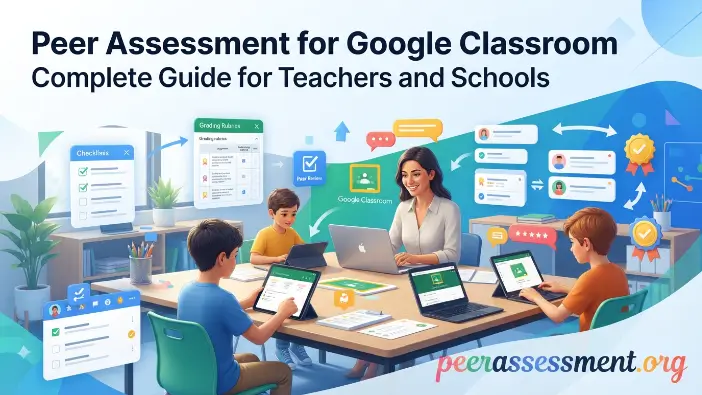
Using Pear Assessment for Google Classroom effectively requires careful planning and the right assessment strategies. Creating online quizzes alone is not enough; teachers should design meaningful assessments connected with lesson objectives to understand student progress. A well-planned digital assessment helps educators identify student strengths, learning difficulties, and areas for improvement. By following best practices, teachers can create a balanced assessment system that improves engagement, supports personalized learning, and makes the overall learning process more effective.
Create Clear Assessment Goals
Before creating an assessment, teachers should first decide the purpose of the activity. Clear assessment goals help educators understand what they want to measure and what students should achieve after completing the assessment.
A good assessment should be based on specific learning objectives. Teachers should know whether they want to check basic knowledge, understanding of concepts, problem-solving skills, or the ability to apply information in real situations.
Before designing questions, teachers should consider:
- What skill is being measured? Teachers should identify the specific ability they want students to demonstrate, such as critical thinking, calculation, writing, or analysis.
- What knowledge should students show? The assessment should focus on important concepts from the lesson rather than unnecessary information.
- How will results improve teaching? Teachers should plan how they will use assessment results to support students and improve future lessons.
Clear goals help teachers create focused assessments instead of adding random questions. When every question has a purpose, students get a better learning experience and teachers receive more useful information about student progress.
For example, if a teacher is teaching a science lesson, the goal should not only be to check whether students remember definitions. The assessment can also check whether students understand processes and can apply scientific ideas to examples.
Mix Different Question Formats
A strong assessment should include different types of questions because students have different ways of showing their understanding. Using only one question format may not provide a complete picture of student abilities.
For example, multiple-choice questions can quickly measure basic knowledge, but they may not show whether students can explain ideas or solve problems. Adding different question types creates a more balanced evaluation.
Teachers can combine:
- Multiple-choice questions: Useful for checking basic facts and concepts quickly.
- Short-answer questions: Help students explain ideas in their own words.
- Problem-solving activities: Measure how students apply knowledge in practical situations.
- Reflection questions: Encourage students to think about their learning experience.
- Interactive tasks: Increase participation and make assessments more engaging.
Different formats help teachers understand student learning from multiple perspectives. Some students may perform better when they explain their thinking, while others may show their skills through practical activities.
A variety of question types also makes assessments more interesting and prevents students from feeling that every test is the same. This improves engagement and encourages deeper learning.
Use Feedback to Improve Learning
Feedback is one of the most important parts of the assessment process. An assessment should not only show a score; it should help students understand their strengths and areas where they need improvement.
Pear Assessment allows teachers to review student responses and provide useful feedback. When students receive guidance, they can learn from their mistakes and improve their future performance.
Teachers should use assessment results to:
- Explain difficult concepts again
- Provide extra learning materials
- Modify teaching strategies
- Support students who need additional help
For example, if assessment results show that many students are struggling with a particular topic, the teacher can revisit that lesson and explain it using a different approach.
Effective feedback creates a continuous learning cycle where assessment, teaching, and improvement work together. Students become more aware of their learning progress, while teachers can make better instructional decisions.
Avoid Overloading Students With Digital Tests
Although digital assessments provide many advantages, teachers should avoid using too many online tests. Excessive testing can make students feel pressured and may reduce their interest in learning.
Assessments should be balanced with other learning activities that allow students to explore ideas, communicate, and apply knowledge in different ways.
Teachers should combine digital assessments with:
- Classroom discussions
- Group projects
- Practical activities
- Research tasks
- Collaborative learning
The main goal of assessment should be meaningful evaluation, not simply increasing the number of tests. Students learn better when assessments are connected with real learning experiences rather than repeated testing.
A balanced approach helps create a positive classroom environment where students feel motivated to participate and improve. By using Pear Assessment wisely with Google Classroom, teachers can create a digital assessment system that supports learning, encourages engagement, and provides valuable insights into student progress.
Common Pear Assessment Problems and Solutions
Although Pear Assessment for Google Classroom makes creating and managing digital assessments easier, teachers and students may sometimes face technical or workflow-related issues related to account settings, platform connections, permissions, or assignment management. Understanding these common challenges helps teachers solve problems quickly and avoid delays in the learning process. Most issues can be prevented by keeping account information updated, checking settings properly, and ensuring that both teachers and students have the correct access.
Google Classroom Connection Issues
One of the most common challenges teachers may experience is difficulty connecting Pear Assessment with Google Classroom. This connection is important because it allows teachers to share assessments, manage classroom activities, and organize student work through Google Classroom.
When the connection does not work correctly, teachers may face problems such as being unable to import classes, share assignments, or view student information. These issues can interrupt the assessment workflow and make it difficult to manage digital activities.
Possible Causes:
Several reasons can cause connection problems, including:
- Incorrect account permissions: Teachers may not have given the required permissions for Pear Assessment to connect with Google Classroom.
- Connection errors: Temporary technical issues may prevent both platforms from communicating properly.
- Using multiple Google accounts: Teachers who are signed into multiple accounts may accidentally connect the wrong account.
- Outdated access settings: Old permissions or settings may prevent the platform from working correctly.
Solutions:
Teachers can solve these issues by following these steps:
- Confirm that they are using the correct Google account.
- Review and approve all required permissions.
- Disconnect and reconnect Pear Assessment if necessary.
- Check Google Classroom settings to ensure the correct class is selected.
A proper connection ensures that teachers can share assessments smoothly and students can access their activities without difficulty.
Students cannot Access Assignments.
Another common problem occurs when students are unable to open or find their assigned assessments. Since digital assessments depend on correct classroom access and account settings, even a small mistake can prevent students from participating.
Students may see errors, missing assignments, or restricted access messages when trying to complete an activity. This can create confusion and delay the learning process.
Common Reasons:
Students may face access problems because of:
- Incorrect classroom enrollment:
The student may not be added to the correct Google Classroom. - Permission restrictions:
The assessment may not be shared with the correct group of students. - Login issues:
Students may be signed into a different Google account instead of their school account.
Solutions:
Teachers should check:
- Student account details
- Classroom membership
- Assignment sharing settings
- Student login accounts
For example, if a student cannot see an assessment, the teacher should first confirm whether the student is part of the correct classroom and is using the approved account.
Ensuring correct student access before assigning assessments helps avoid confusion and allows all learners to participate equally.
Assessment Data Not Updating
Sometimes, teachers may complete an assessment activity but notice that student results are not appearing immediately. Since digital assessments collect and organize data automatically, delays in updating information can create uncertainty.
This issue may happen because students have not submitted their work properly, the system needs refreshing, or there are temporary internet problems.
Possible Solutions:
Teachers can try the following steps:
- Refresh the assessment dashboard
- Confirm that students have submitted their responses
- Check the internet connection quality
- Review assignment completion status
For example, if a student completes an assessment but the result does not appear, the teacher should first check whether the submission was completed successfully.
Keeping assessment records organized and regularly checking student submissions can reduce these problems.
Importance of Proper Assessment Management
Many Pear Assessment problems can be prevented through careful management and preparation. Before sharing assessments with students, teachers should test activities, check permissions, and confirm that classroom settings are correct.
Teachers should:
- Use the correct Google account
- Check platform connections regularly
- Review student access before assigning work
- Keep classroom information updated
- Monitor assessment settings
Proper management creates a smoother digital learning experience and reduces technical interruptions.
Overall, while technical issues can sometimes occur, most Pear Assessment problems can be solved easily with the right steps. By understanding common challenges and applying simple solutions, teachers can continue using digital assessments effectively and provide students with a better online learning experience.
Pear Assessment vs Traditional Classroom Assessments
Both Pear Assessment and traditional classroom assessments are useful methods for evaluating student learning, but they provide different experiences for teachers and students. Traditional assessments have been used for many years and usually involve paper-based tests, while digital assessments use technology to make the evaluation process more flexible, interactive, and data-driven.
Pear Assessment offers modern features that help teachers create, manage, and analyze assessments more efficiently. Traditional assessments may still be useful in some situations, but digital tools provide additional benefits such as faster feedback, easier data tracking, and improved student engagement.
| Feature | Pear Assessment | Traditional Assessment |
| Delivery method | Digital assessments that students can access online through devices | Paper-based tests that require printed materials |
| Grading process | Faster review through digital tools and organized results | Manual checking that can take more time |
| Feedback speed | Students can receive feedback more quickly | Feedback is often delayed because teachers need time to check papers |
| Data tracking | Provides detailed information about student performance and progress | Provides limited data beyond marks and written comments |
| Student engagement | Includes interactive activities that encourage participation | Usually uses fixed questions with less interaction |
| Accessibility | Can be accessed from different devices and locations | Requires physical materials and classroom availability |
Is Pear Assessment the Right Tool for Your Classroom?
Pear Assessment for Google Classroom can be a useful digital assessment solution for teachers who want to improve how they create, manage, and analyze student assessments. It helps educators move beyond traditional testing by offering tools for online activities, progress tracking, and faster feedback. However, choosing the right assessment tool depends on classroom needs, teaching goals, student requirements, and available technology. Therefore, teachers and schools should evaluate whether Pear Assessment fits their learning environment before adopting it.
Teachers Using Google Classroom
Pear Assessment is especially useful for teachers who already use Google Classroom as part of their teaching process. The connection between both platforms helps educators manage digital assignments and assessments in a more organized way. Teachers can create online assessments, share learning activities, and track student work without switching between multiple systems.
By using Pear Assessment with Google Classroom, teachers can provide students with a smoother learning experience. Students can easily access assessments through their classroom environment, while teachers can save time, reduce management tasks, and focus more on improving student learning.
Schools Expanding Digital Learning Programs
Schools that are adopting technology-based education can benefit from digital assessment tools like Pear Assessment. These tools help schools create a modern learning environment by making online assessments easier to manage and allowing students to participate in digital learning activities.
By using digital assessments, schools can organize evaluation processes more effectively, collect useful information about student performance, and help teachers use new teaching methods. This allows educators to make better decisions and improve the overall learning experience.
Educators Who Want Faster Feedback
Quick feedback plays an important role in helping students understand their mistakes and improve their learning. Pear Assessment allows teachers to review student responses digitally, making it easier to provide feedback in a shorter time compared to traditional paper-based assessments.
Faster feedback helps students recognize their weak areas, correct mistakes, and improve their understanding of different topics. It also helps teachers identify common learning problems and adjust their lessons according to the needs of their students.
Classrooms Focused on Student Engagement
Pear Assessment can help create a more engaging classroom environment by encouraging students to take an active part in the learning process. Digital activities and interactive assessment methods make lessons more interesting compared to traditional paper-based tests, where students usually only answer fixed questions.
With Pear Assessment, students can complete activities online, participate in different learning tasks, and receive feedback from teachers. This active involvement helps students understand concepts better, stay motivated, and improve their learning progress.
Teachers Interested in Assessment Analytics
Teachers who want a better understanding of student performance can benefit from digital assessment analytics. Pear Assessment provides useful information about how students are performing, helping educators identify their strengths, weaknesses, and learning patterns.
This data allows teachers to understand which areas students have mastered and where they need additional support. By using real assessment results, teachers can make better teaching decisions, adjust lessons, and provide personalized help according to student needs.
Factors to Consider Before Adopting Pear Assessment
Before adopting Pear Assessment for Google Classroom, teachers and schools should carefully consider their classroom needs and available resources. A digital assessment tool should make the learning process easier, improve teaching methods, and support student progress rather than create additional challenges.
Educators should evaluate factors such as ease of use, student accessibility, integration with existing platforms, assessment requirements, and available technology resources. Choosing the right tool ensures that Pear Assessment can be used effectively to create a better digital learning environment.
Ease of Use
One important factor to consider before adopting Pear Assessment is how easy the platform is for both teachers and students to use. A simple and user-friendly assessment tool allows teachers to create digital activities, manage assessments, and review student results without facing unnecessary technical difficulties.
When a platform is easy to understand, teachers can spend less time learning the system and more time focusing on teaching. Students can also complete assessments more confidently because they can easily access activities, understand instructions, and submit their responses without confusion.
Student Accessibility
Student accessibility is an important factor to consider before adopting Pear Assessment in a classroom. Teachers should ensure that all students have the necessary devices, internet access, and accounts required to complete digital assessments successfully. Equal access helps prevent technology from becoming a barrier to learning.
Schools should also consider students’ technical skills and provide proper guidance when introducing digital assessment tools. When students can easily access and understand the platform, they can participate more confidently, complete activities without difficulty, and get the full benefits of a digital learning experience.
Integration Options
Integration options are an important factor when choosing a digital assessment platform like Pear Assessment. A good assessment tool should work smoothly with the systems that teachers already use, such as Google Classroom. Proper integration helps educators share assessments, manage student activities, and organize learning materials more efficiently.
When Pear Assessment connects with existing classroom platforms, teachers can save time and reduce the need to manage multiple separate tools. A smooth integration creates a better workflow, allowing teachers and students to focus more on learning rather than dealing with technical difficulties.
Assessment Requirements
Before adopting Pear Assessment, teachers should consider their specific assessment requirements and learning objectives. Every classroom has different needs, so educators should choose a platform that supports the types of assessments they want to create, such as quizzes, interactive activities, student responses, and performance evaluations.
A suitable assessment tool should help teachers measure student understanding effectively and provide useful learning insights. By selecting a platform that matches their assessment goals, teachers can create more meaningful activities, track student progress, and improve the overall learning experience.
Available Technology Resources
Before implementing Pear Assessment, schools and teachers should consider their available technology resources. Digital assessment tools require proper devices, stable internet access, and suitable technical support to work effectively. Without the necessary resources, students and teachers may face difficulties while using the platform.
Schools should also ensure that teachers receive proper training and guidance for using digital assessment tools. Having reliable technology, updated systems, and technical assistance helps create a smoother learning experience. When the required resources are available, Pear Assessment can be used more effectively to support digital learning and student progress.
Frequently Asked Questions
What is Pear Assessment used for?
Pear Assessment is used to create and manage digital assessments that help teachers evaluate student understanding, provide feedback, and track learning progress.
Can Pear Assessment integrate with Google Classroom?
Yes, Pear Assessment can work alongside Google Classroom workflows, allowing teachers to manage digital assessment activities within their existing classroom environment.
Is Pear Assessment suitable for online learning?
Yes. Digital assessment platforms like Pear Assessment can support online, hybrid, and classroom-based learning by allowing students to complete activities remotely and receive feedback digitally.
How does Pear Assessment help teachers?
Pear Assessment helps teachers save time, create interactive assessments, analyze student performance, and make better instructional decisions using assessment data.
What types of assessments can teachers create?
Teachers can create different assessment formats, including quizzes, formative checks, interactive activities, knowledge evaluations, and digital learning tasks.
Conclusion
Digital assessment tools are becoming an important part of modern education because they help teachers evaluate student learning in a faster and more effective way. Pear Assessment for Google Classroom allows educators to combine interactive assessments with an organized digital classroom system. It makes it easier for teachers to create activities, monitor student progress, and provide useful feedback based on student performance.
By using digital assessments in the right way, teachers can save time, increase student participation, and make better teaching decisions using real learning data. Pear Assessment provides flexibility for different classroom needs, from quick knowledge checks to detailed evaluations. Understanding how assessment technology works helps educators create better digital learning experiences and use Google Classroom more effectively.


