
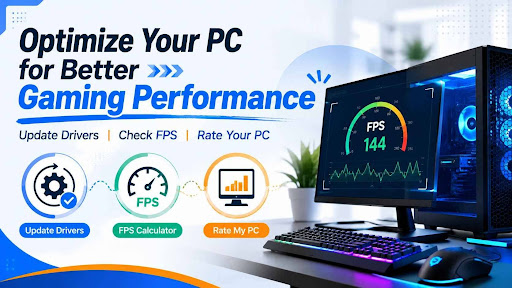
PC gaming has evolved significantly over the years, with modern games offering stunning graphics, realistic physics, and immersive gameplay experiences. However, achieving smooth performance requires more than simply installing a game and pressing play. Many gamers struggle with low frame rates, stuttering, lag, and unexpected crashes without realizing that their system may need optimization.
Fortunately, there are several simple ways to improve gaming performance without spending money on new hardware. By keeping your drivers updated, monitoring frame rates, and evaluating your computer’s capabilities, you can identify performance issues and make informed decisions about upgrades and optimizations.
Why PC Performance Matters for Gaming
Gaming performance directly affects the overall experience. A system that runs games smoothly provides better responsiveness, improved visuals, and more enjoyable gameplay. On the other hand, performance issues can lead to delays, screen tearing, and reduced competitiveness in online games.
Many factors influence gaming performance, including graphics card drivers, CPU capabilities, memory, storage speed, and system settings. Understanding these factors is the first step toward creating a better gaming experience.
The Importance of Updating Drivers
One of the most overlooked aspects of PC maintenance is keeping drivers up to date. Drivers act as communication bridges between hardware components and the operating system. Outdated drivers can lead to compatibility issues, reduced performance, and even security vulnerabilities.
When gamers regularly update drivers, they often gain access to performance improvements, bug fixes, and support for newly released games. Graphics card manufacturers frequently release optimized drivers designed specifically for the latest game titles.
Benefits of updating drivers include:
- Improved game stability
- Better hardware compatibility
- Enhanced graphics performance
- Reduced crashes and errors
- Access to the latest gaming optimizations
Many users postpone driver updates because they believe the process is complicated. In reality, modern tools make it easier than ever to scan, identify, and install the latest driver versions.
Understanding Frame Rate Performance
Frame rate, commonly measured in FPS (Frames Per Second), is one of the most important indicators of gaming performance. Higher FPS generally results in smoother gameplay and a more responsive gaming experience.
For example:
- 30 FPS is considered playable.
- 60 FPS provides smooth performance for most games.
- 120 FPS and above delivers highly responsive gameplay preferred by competitive gamers.
Monitoring frame rates allows players to understand how well their system handles specific games and settings. This information helps users adjust graphics options and identify potential performance bottlenecks.
An FPS calculator can be extremely useful for estimating expected frame rates based on system specifications. Instead of relying on guesswork, gamers can better understand how hardware components affect performance and determine whether upgrades are necessary.
How to Evaluate Your Computer’s Gaming Capability
Many gamers wonder whether their computer can handle a newly released game before purchasing it. Instead of manually comparing hardware specifications, it is often easier to rate my PC using performance evaluation tools.
A PC rating assessment can help users determine:
- Overall system performance
- Gaming readiness
- Hardware strengths and weaknesses
- Upgrade priorities
- Compatibility with modern games
Knowing how your system performs compared to recommended game requirements allows you to make smarter decisions and avoid disappointment after installing demanding titles.
Common Reasons for Low Gaming Performance
Even powerful computers can experience performance issues if they are not properly maintained. Some of the most common causes include:
Outdated Drivers
Older drivers may not support the latest gaming technologies and optimizations. Regularly updating drivers helps ensure maximum compatibility and performance.
Background Applications
Programs running in the background consume CPU, RAM, and storage resources. Closing unnecessary applications can free up valuable system resources for gaming.
Excessive Graphics Settings
Running games at settings beyond your hardware’s capabilities can dramatically reduce frame rates. Adjusting graphics options can significantly improve performance.
Insufficient Storage Space
A nearly full drive can slow down game loading times and overall system responsiveness. Maintaining adequate free storage helps keep the system running efficiently.
Hardware Bottlenecks
A weak CPU, limited RAM, or aging graphics card can prevent the system from achieving higher performance levels. Identifying bottlenecks is essential when planning upgrades.
Creating a Simple PC Optimization Routine
Improving online gaming performance does not require advanced technical knowledge. A basic maintenance routine can make a noticeable difference.
1. Update Drivers Regularly
Schedule monthly driver checks to ensure hardware components are running the latest software versions.
2. Monitor FPS
Track frame rates during gameplay to identify performance changes and evaluate the impact of optimization efforts.
3. Evaluate System Performance
Use tools that allow you to rate my PC and understand whether your hardware meets the requirements of modern games.
4. Keep Windows Updated
Operating system updates often contain performance improvements and security enhancements.
5. Remove Unnecessary Startup Programs
Reducing startup applications can improve boot times and overall system responsiveness.
Choosing the Right Upgrade Path
Not every performance issue requires a complete system replacement. Understanding your current hardware capabilities can help prioritize upgrades effectively.
For example:
- Low FPS in graphically intensive games may indicate the need for a graphics card upgrade.
- Long loading times may suggest upgrading to a faster SSD.
- Frequent stuttering could be caused by insufficient RAM.
Before spending money, it is important to evaluate your current setup and identify the component causing the bottleneck.
Final Thoughts
Achieving better gaming performance starts with understanding your PC and maintaining it properly. Small actions such as keeping drivers current, monitoring frame rates, and evaluating system capabilities can have a significant impact on gaming experiences.
Whether you want to update drivers for improved compatibility, use an FPS calculator to estimate performance, or rate my PC to identify upgrade opportunities, taking a proactive approach can help you get the most from your gaming hardware. By following these best practices, gamers can enjoy smoother gameplay, greater stability, and improved overall performance without unnecessary frustration.